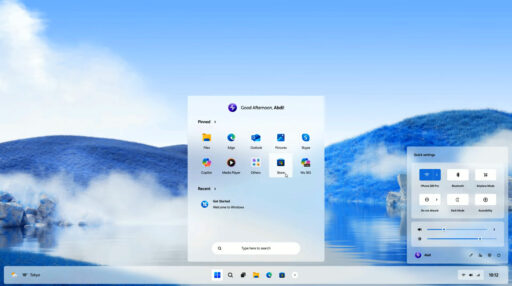
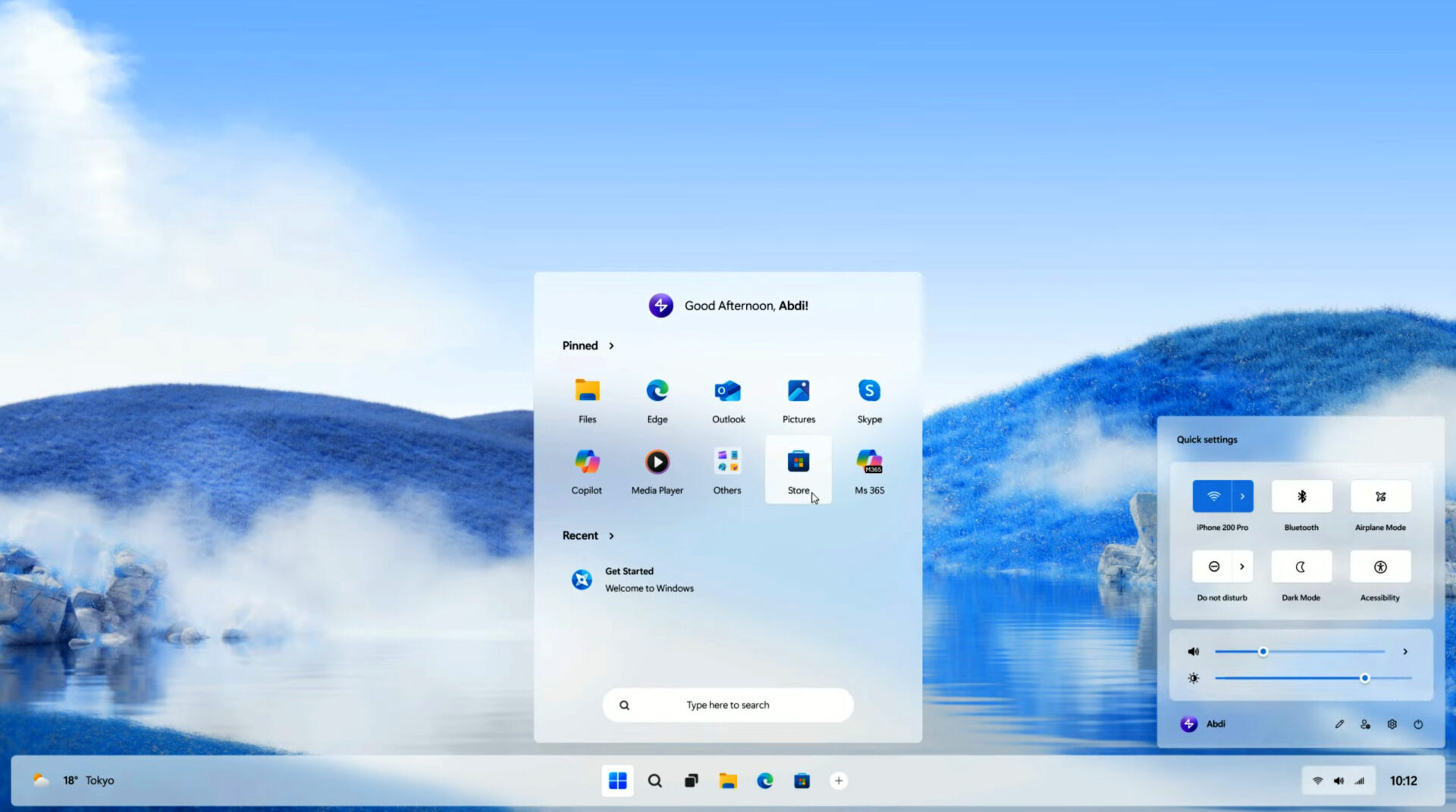

Windows 12 introduces a new era of AI integrated computing, and in many ways it is impressive. Still, for gamers, the goal has not really changed. What matters most is raw, consistent performance. Out of the box, Windows 12 is tuned for everyday productivity, which means background AI tasks, system services, and telemetry can quietly chip away at your frame rates.
If you take a little time to adjust the right settings, you can push the operating system into a more gaming focused state. The steps below are meant to streamline Windows 12 so that, as much as possible, your hardware is doing one thing only: running your games smoothly.
Enable Windows 12 Game Mode
Game Mode is Microsoft’s built in feature designed specifically to prioritize gaming workloads. When enabled, it limits background activity and prevents Windows Update from running driver installations or restart notifications while you are playing. In practice, this often results in more stable frame times, which can matter just as much as higher FPS.
Open the Settings app by pressing Windows Key + I.
Navigate to the Gaming section in the sidebar.
Click on Game Mode.
Toggle the switch to On.
It is a simple change, but it is one of those settings that is easy to overlook and surprisingly effective.
Configure Advanced Graphics Settings
Windows 12 expands on Hardware Accelerated GPU Scheduling, often shortened to HAGS. This feature allows the GPU, the dedicated processor responsible for rendering visuals, to manage its own memory. The result, at least in many modern games, is reduced latency and smoother performance.
Go to Settings, then System, then Display.
Scroll down and select Graphics.
Click on Change default graphics settings.
Toggle Hardware accelerated GPU scheduling to On.
Enable Variable Refresh Rate if your monitor supports it, as this helps reduce screen tearing.
Keep in mind that you will need to restart your PC for these changes to fully apply. It is a small inconvenience, but worth doing.
Optimize Power Plans for Maximum Performance
By default, Windows uses the Balanced power plan. That is fine for everyday tasks, but for gaming you want your CPU, essentially the brain of your computer, running at full speed without aggressive throttling.
Type Control Panel into the Windows search bar and open it.
Go to Hardware and Sound, then Power Options.
Select High Performance.
On higher end systems, you may also see Ultimate Performance. If it is available, selecting it can further reduce latency during demanding games.
This setting does increase power consumption, so it makes the most sense on desktops or gaming laptops plugged into the wall.
Disable Background Apps and AI Telemetry
Windows 12 includes features like Recall and other AI driven services that periodically analyze on screen activity. They can be genuinely useful for productivity, but during gaming they may introduce small stutters or inconsistent performance. It is subtle, but some players definitely notice it.
Turn off AI Background Recording
Go to Settings, then Privacy and Security.
Locate the Generative AI or Recall settings.
Toggle these features Off during gaming sessions to free up system resources.
Clean Startup Apps
Press Ctrl + Shift + Esc to open Task Manager.
Click the Startup apps tab.
Right click and disable any applications you do not need running immediately after boot, such as music players, launchers, or cloud sync tools.
This step alone can noticeably improve system responsiveness, especially on mid-range systems.
Debloat Windows 12 Using PowerShell
For more advanced users, debloating Windows removes pre-installed software that cannot be uninstalled through standard menus. Doing this reduces the overall operating system footprint and frees up background resources.
Right click the Start button and select Terminal (Admin).
Enter the following command to launch a community verified optimization tool:
irm https://christitus.com/win | iex
From the interface, select Desktop or Gaming tweaks. These presets automatically disable unnecessary services and telemetry, including features like the Print Spooler if you do not use a printer.
This step is optional, but for dedicated gaming machines, it can make a real difference.
Update Graphics Drivers Regularly
Outdated drivers remain one of the most common causes of poor gaming performance. Regardless of your hardware, keeping drivers current ensures compatibility with new releases and performance optimizations.
NVIDIA users should update through GeForce Experience or the NVIDIA App.
AMD users should rely on Radeon Software.
Intel Arc users should use the Intel Driver and Support Assistant.
As a general rule, checking for updates once a month is a good habit, especially around the release of new AAA titles.
FAQ: Windows 12 Gaming Optimization
Q. Does Game Mode actually work in Windows 12?
A. Yes. In Windows 12, Game Mode is more aggressive in pausing background AI tasks, which prevents sudden “frame drops” during gameplay.
Q. Will disabling AI features make my PC less secure?
A. No. Disabling features like “Recall” or “Telemetry” only stops data collection and screen indexing; it does not turn off your firewall or antivirus.
Q. Should I use an SSD for Windows 12 gaming?
A. Absolutely. An SSD (Solid State Drive) is required for Windows 12’s DirectStorage technology, which allows the GPU to load game assets directly from storage, nearly eliminating loading screens.